

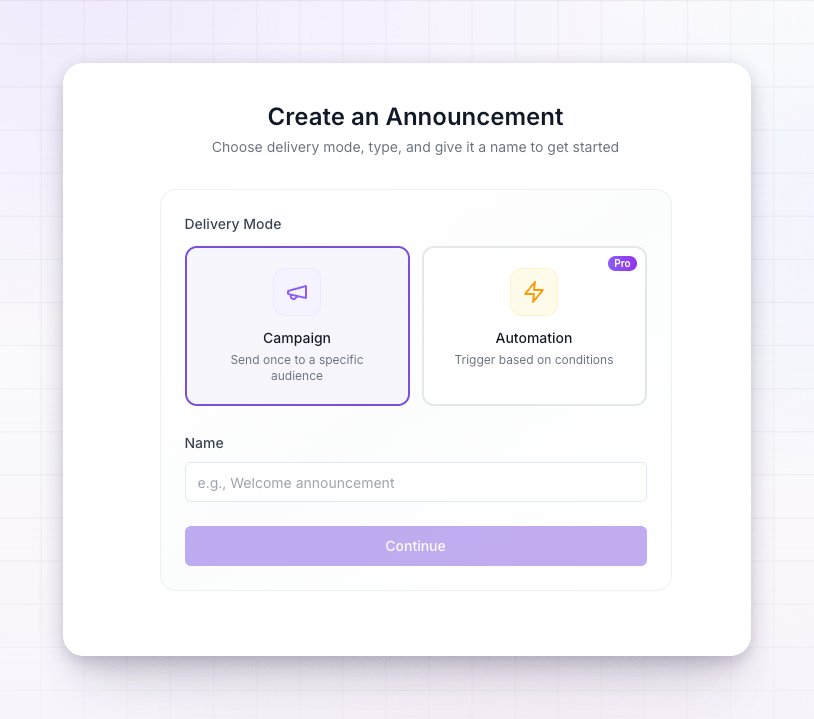
The pop-up is the only announcement format available today, so there’s no format to choose — open a new announcement and you’re designing a pop-up.
Choose a style and position
Under Style, pick a Style Variant — each is a ready-made layout:- Style 1 — a classic centred card, with the option to add more than one step.
- Style 2 — a panel that slides in from the side, with the content stacked.
- Style 3 — a minimal card built around an icon and a single action.
Add a header image or icon
Depending on the layout, a pop-up can lead with a small icon or a larger image, GIF, or video at the top. Choose an icon from the built-in set, upload your own image, GIF or video, or paste a YouTube link. Keep visuals light so the portal still loads quickly — uploads for affiliate announcements need to be under 5MB.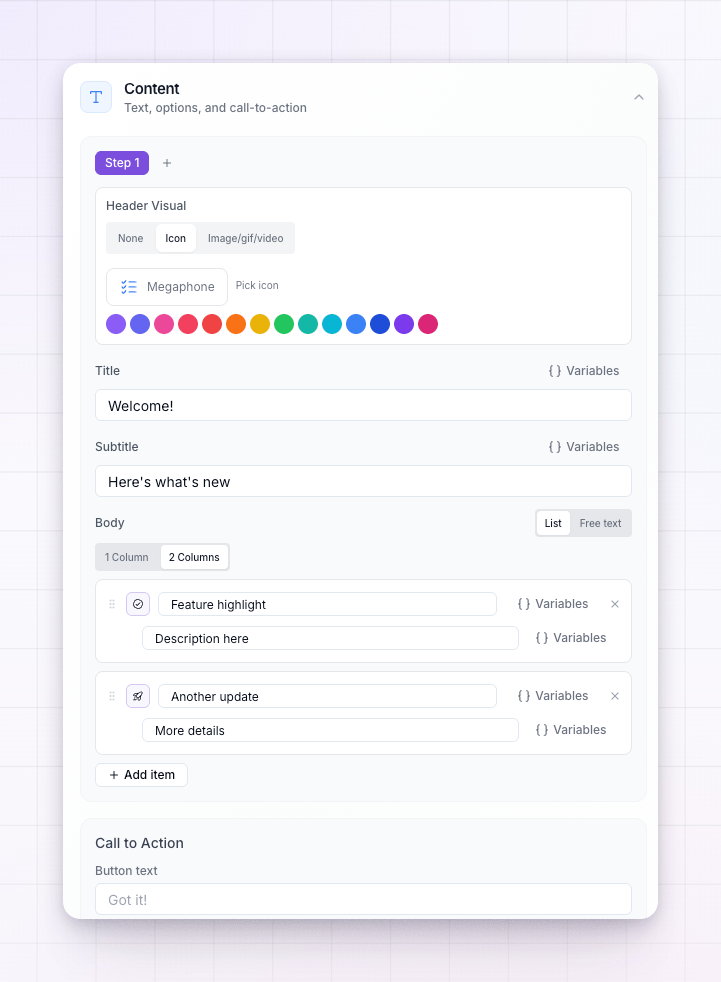
Write the title and message
Add a Title, an optional Subtitle (on the layouts that support one), and the Body text of your message. Write the body the way you’d talk to your affiliates — short and clear beats long and formal.Walk through more than one step
Style 1 and Style 2 let you add extra steps, so you can take affiliates through a short sequence — for example an intro, then the offer — inside a single pop-up. Use Add step to create the next one, and switch between steps to edit each in turn.Set the call-to-action button
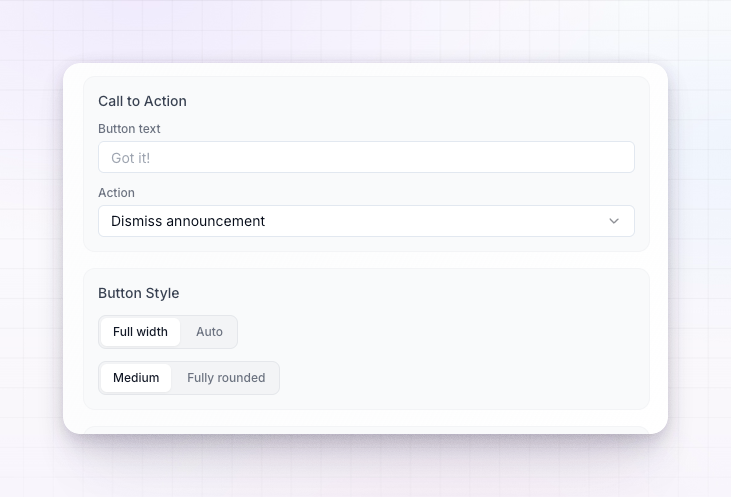
The Call to Action controls the button at the bottom of the pop-up:- Button text — what the button says, such as
Got it!orClaim offer. - Action — what happens when it’s clicked. Choose Dismiss announcement to simply close the pop-up, or Open URL to send the affiliate somewhere.
- URL — the link to open, shown when you pick Open URL. Turn on Open in new tab to keep the portal open behind it.
Add a countdown timer
Turn on the Countdown Timer to add urgency to a limited-time offer. Set when the countdown ends, choose a Bar or Cards style, and optionally disable the button after the countdown ends so the offer closes itself when time runs out.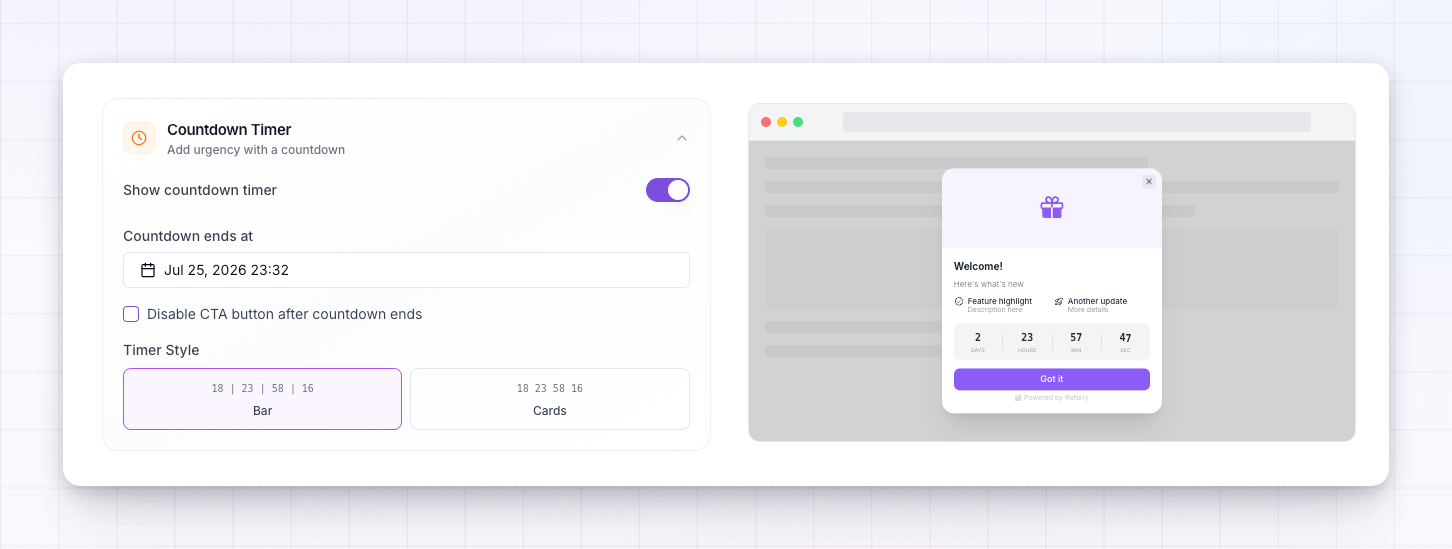
Hide Referly branding
By default announcements carry a small “Powered by Referly” badge. Turn on Hide Referly Branding to remove it for a fully white-labelled look. This option may depend on your plan.Preview before you send
Use the preview beside the editor to check how the pop-up looks before publishing. When you’re happy with the design, move on to the Setup tab to decide who sees it and when.Related
Announcements overview
How announcements work and where they appear.
Target an audience
Send an announcement to everyone or a filtered group.
Marketing assets
Link a pop-up straight to the banners and links affiliates promote with.
Messages overview
Have two-way conversations with your affiliates instead.