

Where announcements appear
Announcements show up inside the affiliate portal — the dashboard your affiliates log in to. Every announcement is a pop-up: a card that opens over the affiliate’s dashboard, so it’s hard to miss. Your affiliates don’t need to do anything to receive one; the next time they open their portal, it’s there.Pop-ups are the only announcement format available today. More formats may follow, but for now every announcement you create is a pop-up.
Open Announcements
In the left sidebar, select Affiliate Announcements. The page opens with your list of announcements and a calendar that shows when each one is scheduled or running. To start a new one, select Create announcement in the top right.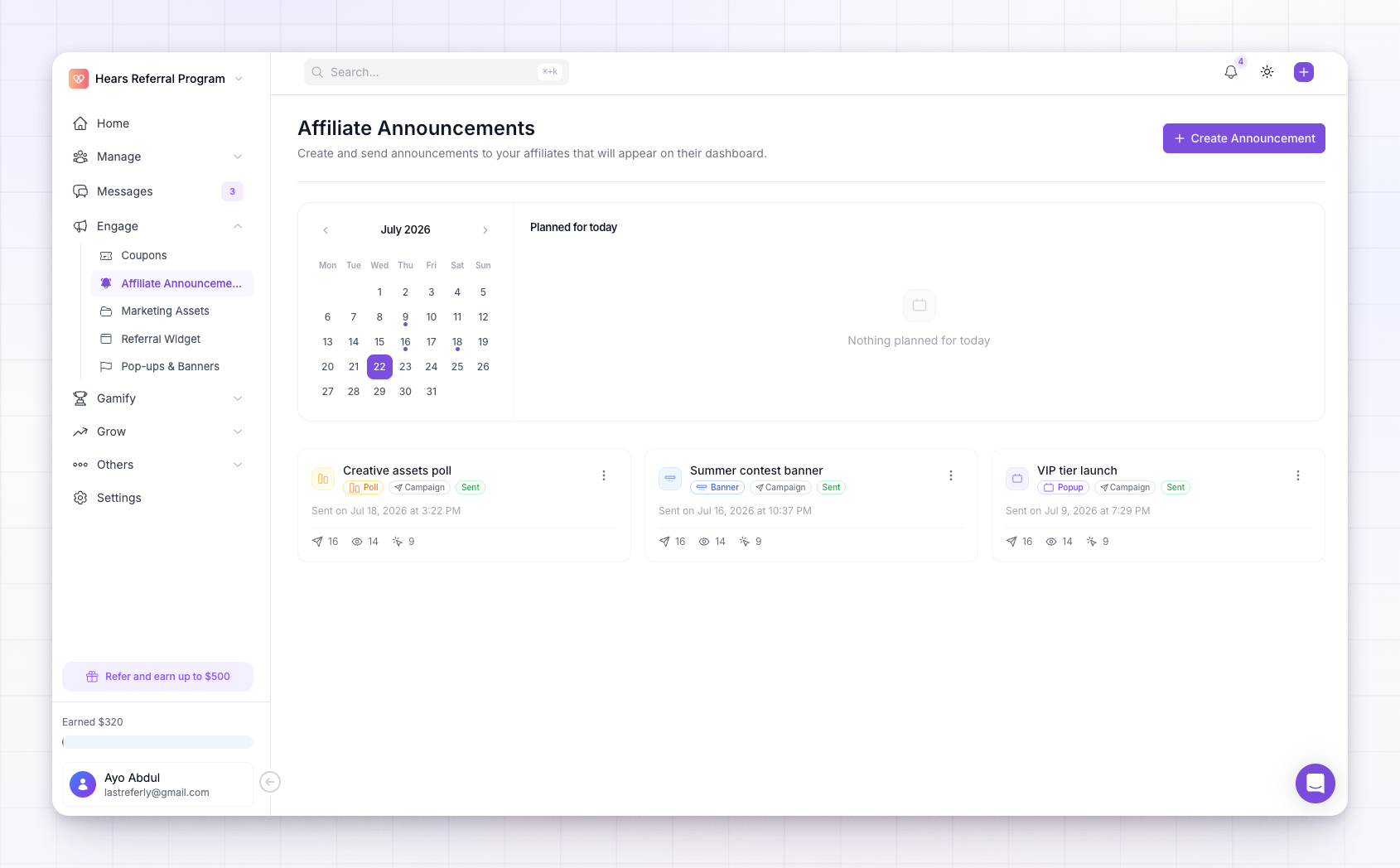
Build it in the editor
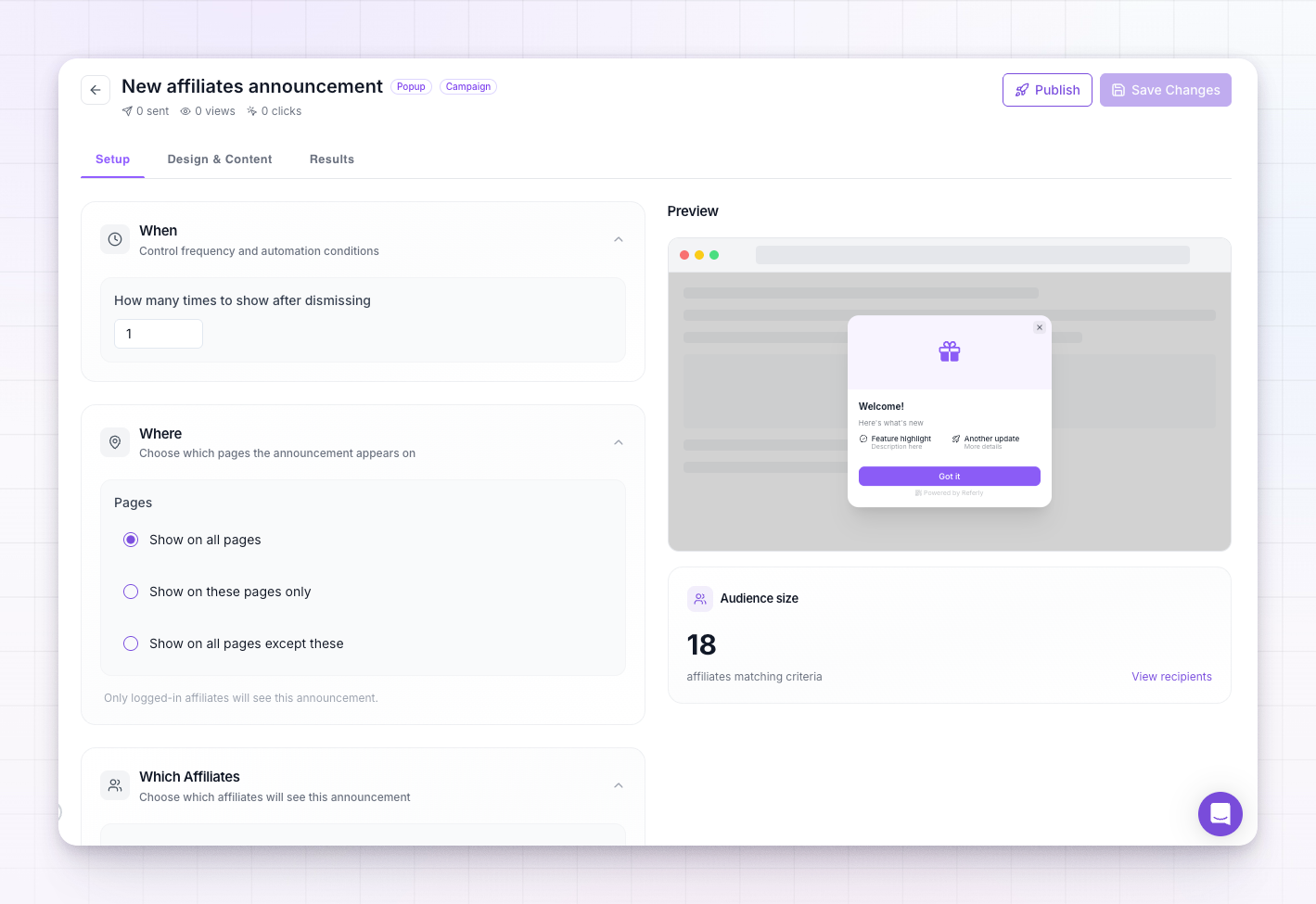
When you create or open an announcement, the editor has three tabs, with a live preview beside them so you can see your changes as you make them:- Setup — controls when, where, and who: how it’s delivered, how often it shows, which portal pages it appears on, the audience that receives it, and who it appears to be from.
- Design & Content — the words and look: layout, title, body, image, colours, button, and position on the screen.
- Results — how the announcement is performing once it’s live.
 For everything on the Design & Content tab — layouts, images, the call-to-action button and the countdown timer — see Pop-up settings.
Choose how it’s sent
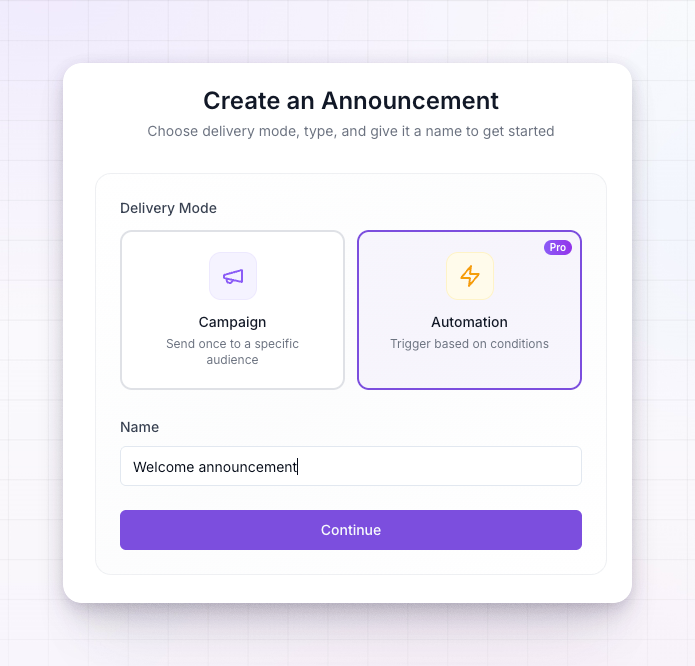
Each announcement is delivered in one of two ways, which you pick at the top of the Setup tab:- Campaign — a one-time send. You publish it now or schedule it for a future date and time, and it goes out to your audience once.
- Automation — a rule that sends the announcement automatically whenever an affiliate meets a condition, such as a set number of days after they join. New affiliates receive it when they qualify, without you lifting a finger.
Decide who sees it
By default an announcement goes to everyone in your program. You can also narrow it to a specific group — for example only your top performers, affiliates in a certain group, or people who joined recently. See Target an audience for the full set of targeting options.Control when and how often it shows
On the Setup tab you can schedule an announcement to go live at a future date, set how many times it reappears after an affiliate dismisses it, and choose how long to wait between each showing. You can also limit it to specific pages of the portal, so it only appears where it’s relevant.Track results
Once an announcement is live, open its Results tab to see how many affiliates it was sent to, how many viewed it, how many clicked its button, and how many dismissed it. Use this to tell whether a promotion landed or whether it’s worth sending a follow-up.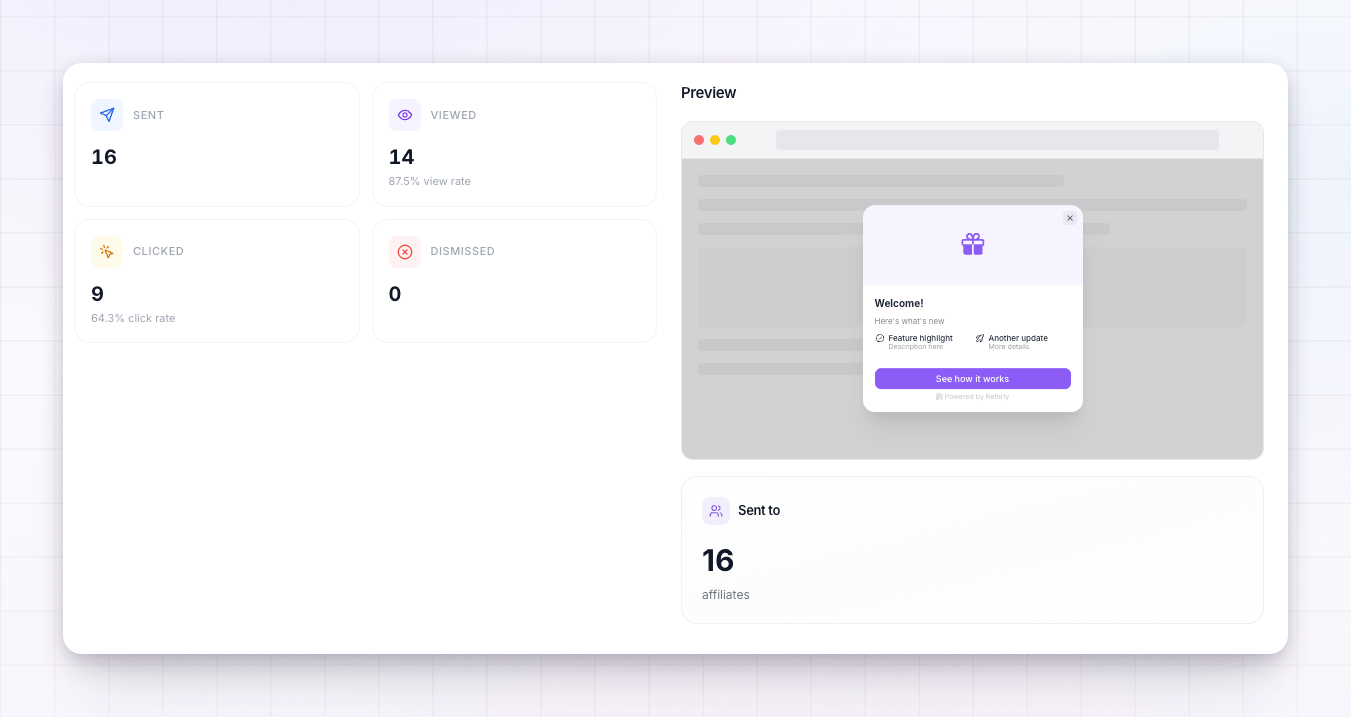
Statuses and the calendar
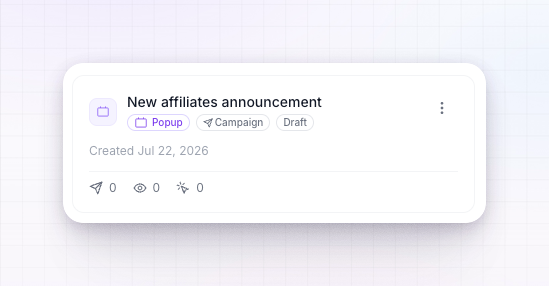
Every announcement carries a status so you always know where it stands:- Draft — still being built; not visible to anyone.
- Scheduled — set to go live at a future date.
- Active — currently showing to your audience.
- Completed — finished running.
- Paused — temporarily stopped; you can resume it.
- Archived — retired and hidden from the main list.
Availability
Announcements are part of Referly’s engagement features. Depending on your plan, announcements and announcement automations may require the Engagement add-on. See Add-ons for what’s included.Related
Pop-up settings
Design your pop-up: layout, images, button, and countdown timer.
Target an audience
Send an announcement to everyone or a filtered group of affiliates.
Messages overview
Have two-way conversations with your affiliates inside Referly.
Marketing assets
Share banners and links for affiliates to promote with.