

Agency mode comes with the Agency plan. If your account isn’t on it, opening the agency area sends you back to your normal dashboard. See plans and features to compare plans, or talk to us about moving over.
How an agency account is different
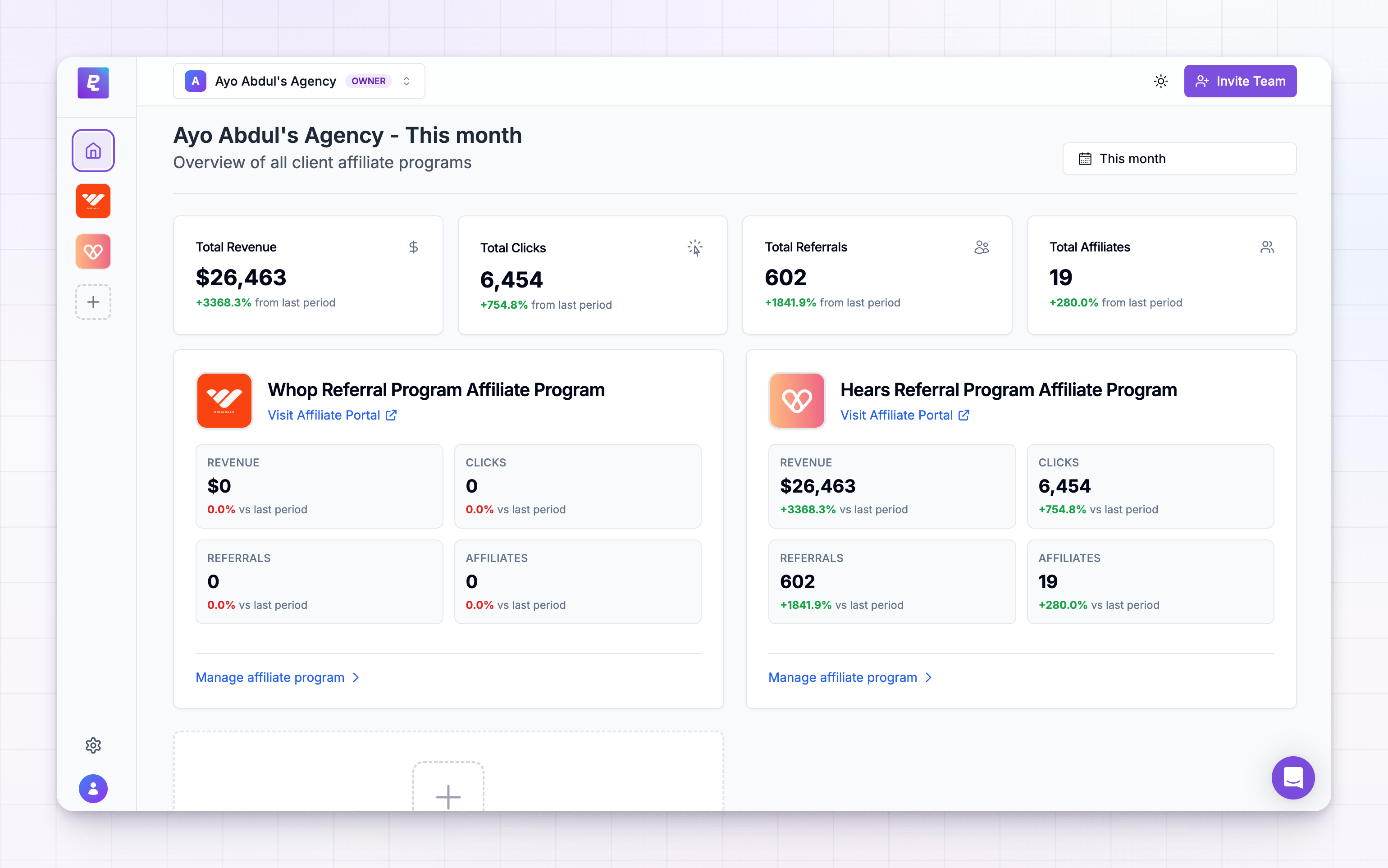
A normal Referly account is built around one program: you sign in and land on that program’s affiliates, links, and payouts. An agency account puts a workspace in front of all that.- One home for every client. Your agency dashboard totals up revenue, clicks, referrals, and affiliates across all client programs, then breaks the same numbers out per program.
- You create the programs. New client programs are set up from your agency dashboard, and the client is invited into the one program that belongs to them.
- You decide what each client gets. For every client program you control which features are switched on and how far they can grow before hitting a limit.
- You handle the money. You can charge your clients for their programs on your own plans and prices, and take payment through your own account.
- It carries your name. With white label and a custom domain, clients sign in to a dashboard with your logo, on your web address.
Find your way around
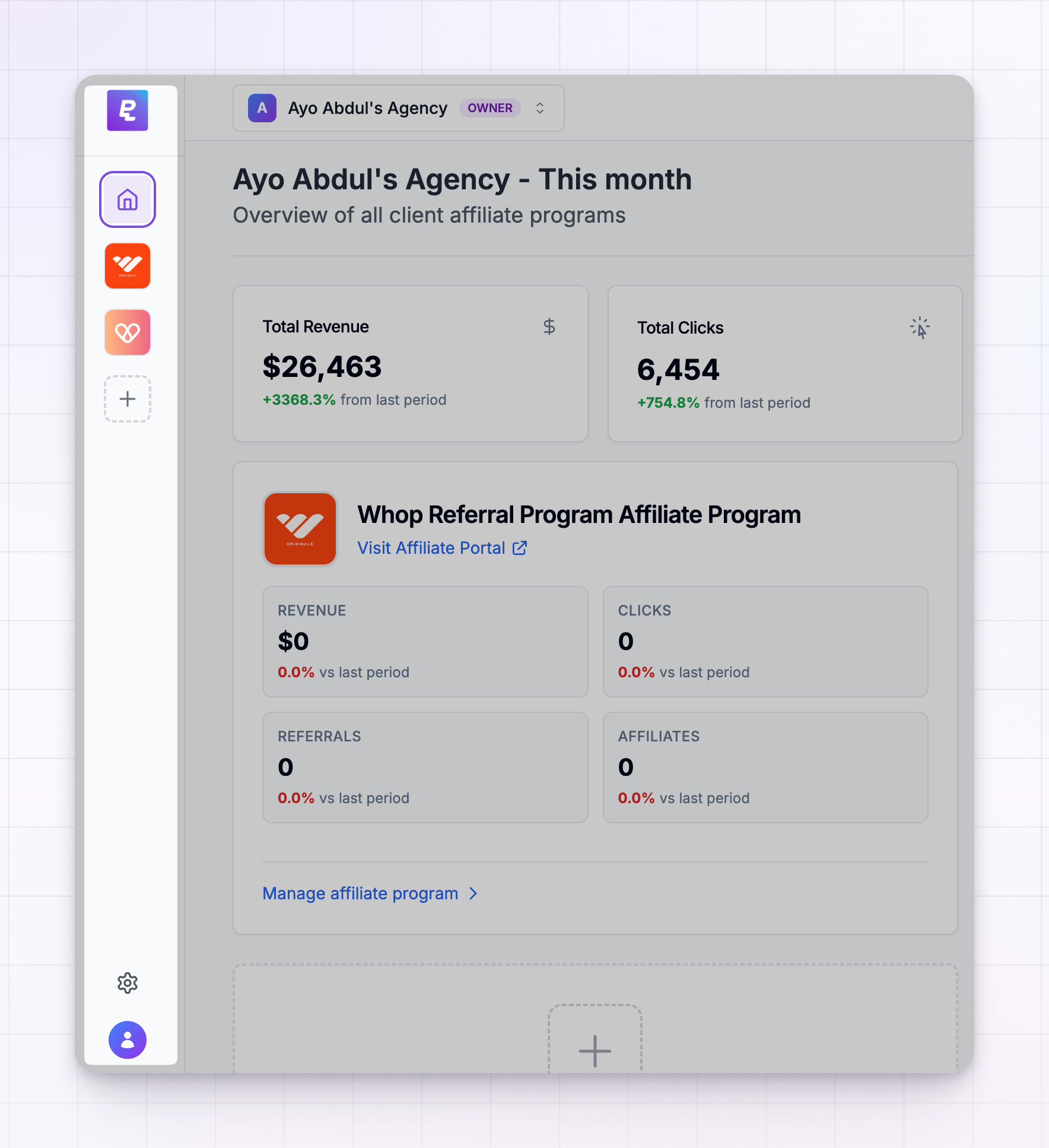 The narrow bar down the left is how you move between everything:
- Home — the agency dashboard with your combined totals and every client program.
- Program icons — one for each client program, in the order they were created. Hover to see the program name; select one to open its management screens.
- The plus button — creates a new client program.
- Agency Settings — the gear at the bottom, for everything that applies across your whole agency.
Read the agency dashboard
The home screen opens on This month. Use the date picker at the top right to change the window — there are presets for today, yesterday, the last 7, 14, or 30 days, this week, last week, this month, last month, and maximum, or you can pick your own dates. Under the picker sit four totals for the period you chose — Total Revenue, Total Clicks, Total Referrals, and Total Affiliates — each with the percentage change against the period before it, so you can see at a glance whether things are moving the right way. Below that, every client program gets a card showing its own revenue, clicks, referrals, and affiliates for the same window. Two links on each card jump you straight into that client’s world:- Visit Affiliate Portal opens the portal their affiliates actually see.
- Manage affiliate program opens the program’s full dashboard, where you can work with its affiliates, commissions, and payouts exactly as the client would.
Add a client program
Select the plus button in the left bar, or the Create New Program card at the end of your program list.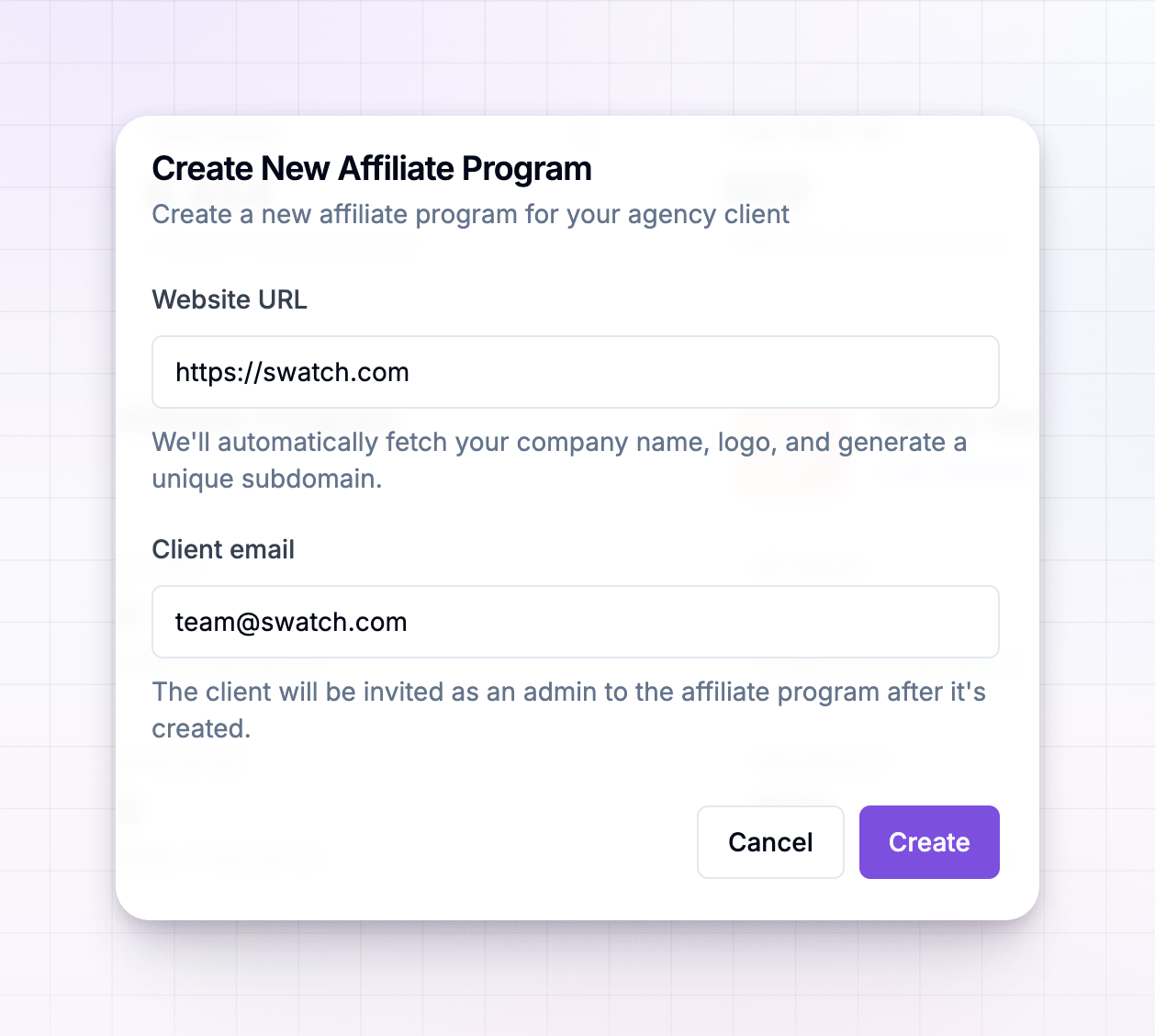
1
Enter the client's website
Put the client’s web address into Website URL. Referly pulls their company name and logo from the site and generates a web address for their affiliate portal, so you’re not filling any of that in by hand.
2
Enter the client's email
Add the address in Client email. Once the program is created, that person is invited as an admin of their own program — they can run it day to day while you keep the agency-level controls.
3
Create it
Select Create. You’re taken into the setup flow for the new program, where you finish the details and choose how commissions work.
How many programs you can run at once depends on your plan. When you reach the limit, the create button prompts you to upgrade before it opens.
Controls for a single client program
Selecting a program opens its management screens. The header shows the program’s logo and name, a link to Visit Affiliate Portal, a link to Manage Program, and a Status switch that turns the whole program on or off.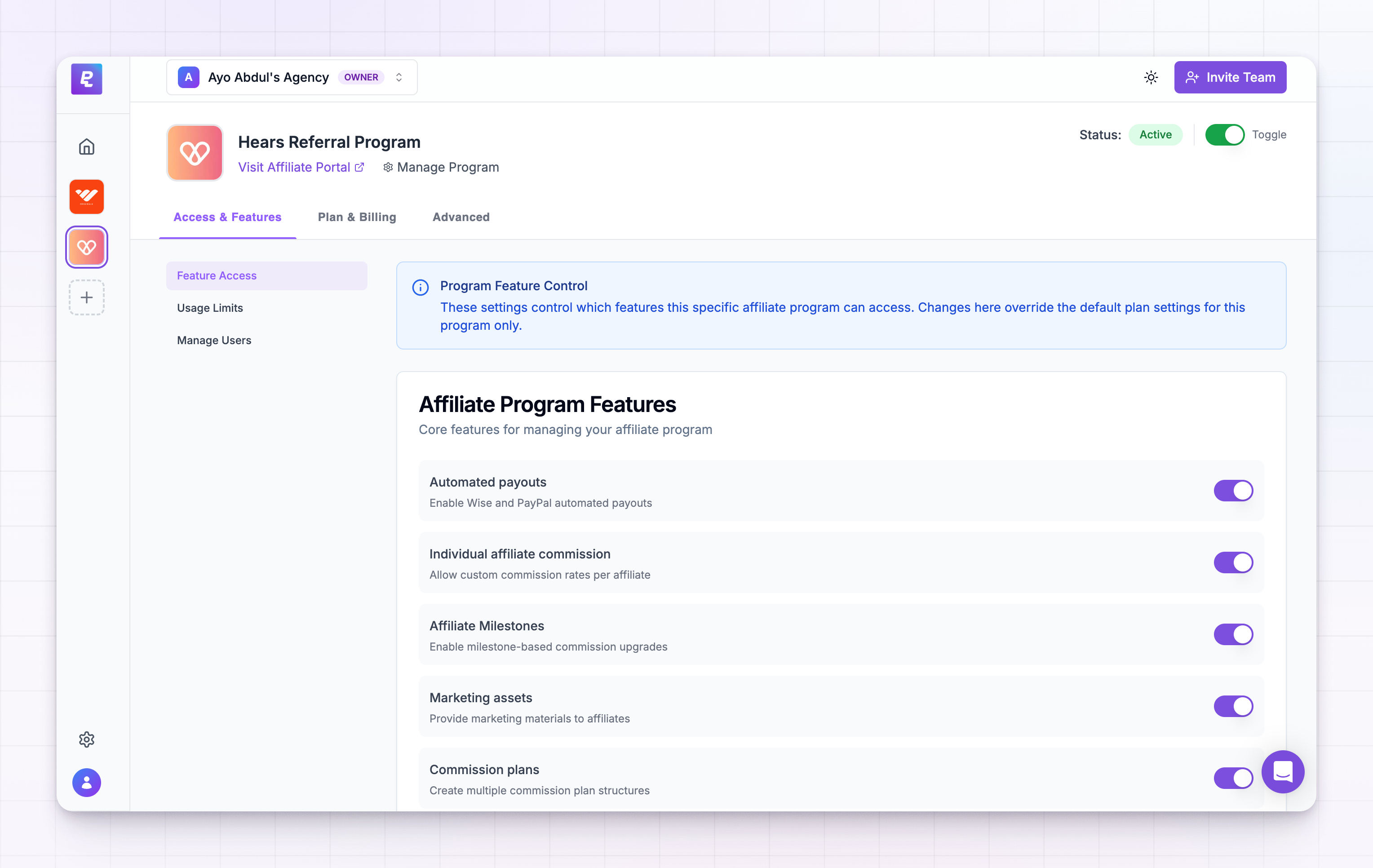 Three tabs sit under it:
Access & Features
Feature Access decides which parts of Referly this client can use, and Usage Limits caps how many affiliates, customers, users, or how much revenue the program can reach. Manage Users opens the client program’s own team screen so you can see who has access. Read more in feature access and usage limits.Plan & Billing
Current Plan shows which of your plans the client is on, Billing Status shows whether their subscription is healthy, and Payment Exemption lets you waive charges for a client entirely — useful for a program you’re covering yourself or one still in a trial. Read more in payment exemptions.Advanced
Danger Zone holds the destructive actions for the program, including deleting it. Everything here is permanent, so take a moment before confirming anything.Settings for the whole agency
Select the gear at the bottom of the left bar to open Agency Settings. Five tabs cover everything that applies across every client program.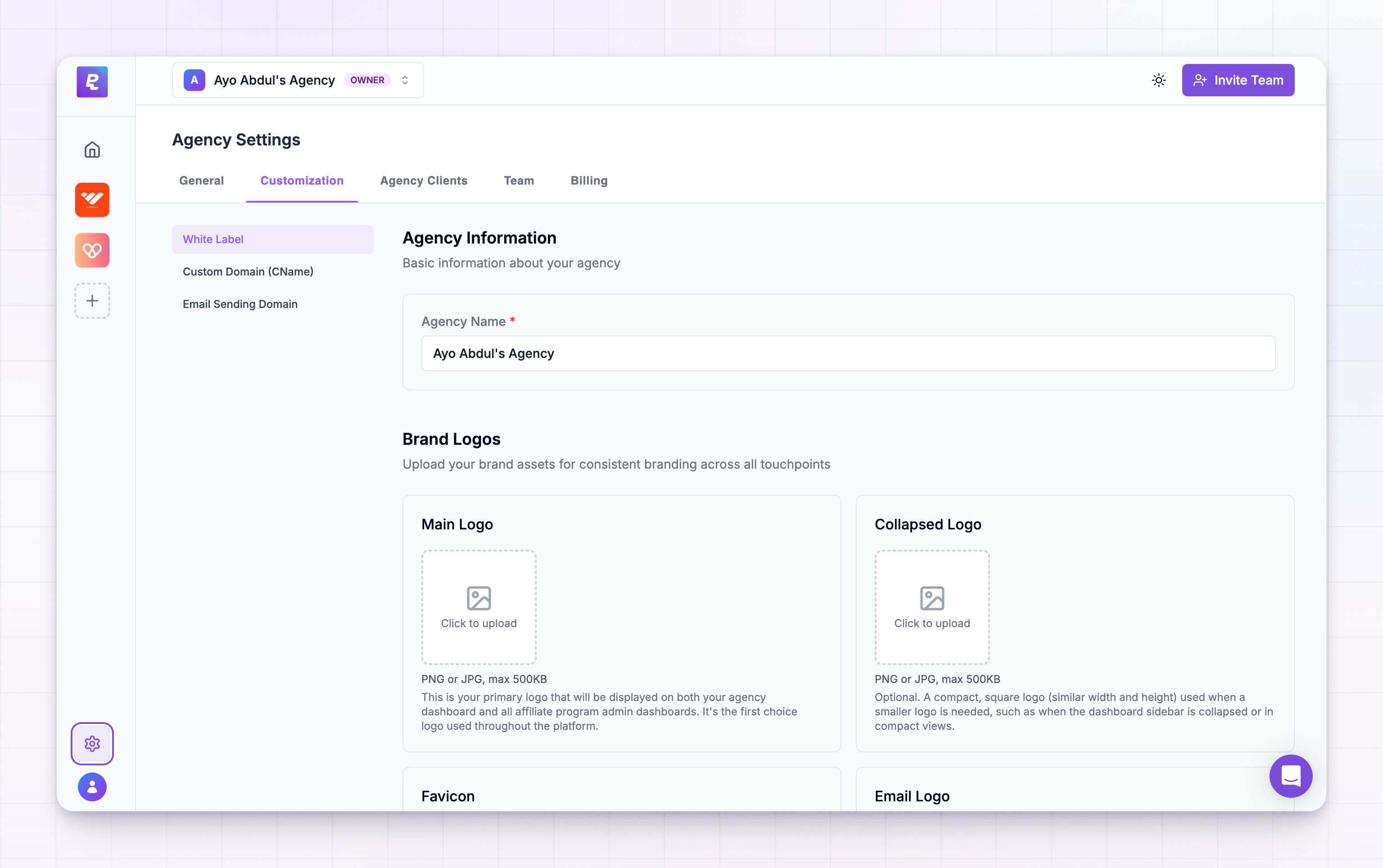
- General — take payments from clients through Accept Payments, build the plans you sell in Plans and Features, and switch agency-wide options like Short Links, Referly Payouts, Marketplace, API Keys, and which Integrations your clients can see.
- Customization — put your own brand on everything with white label, point your own web address at the dashboard with custom domain, and send client emails from your own domain with Email Sending Domain.
- Agency Clients — see every client subscription in one list under Subscriptions, and open combined reporting under Analytics.
- Team — add the people who work with you and control which client programs each of them can open. Works the same way as team members.
- Billing — your own subscription with Referly, your invoices, and any marketplace licenses you hold. See agency billing.
Everyone on your agency team holds one of three roles. Owner and Admin can open every client program; a Member only sees the programs you’ve given them. Set this up under Team.
Where to go next
If you’re just starting out, the order that usually works best is: put your branding on the dashboard first, so clients never see anything unbranded; then set up the plans you’ll charge for; then add your first client program.Manage client programs
Create programs, hand them to clients, and manage them day to day.
Feature access and usage limits
Choose what each client can use and how far they can grow.
Payment exemptions
Waive charges for a client program.
White label
Put your logo and colours on the dashboard your clients use.
Custom domain
Run the whole thing on your own web address.
Agency billing
Your subscription, invoices, and charging your clients.