

Add or edit a note
There are two ways to open a customer’s note, both in your Customers list:- Open the customer’s actions menu on their row and choose Notes.
- Or select the note icon in the Notes column on their row.
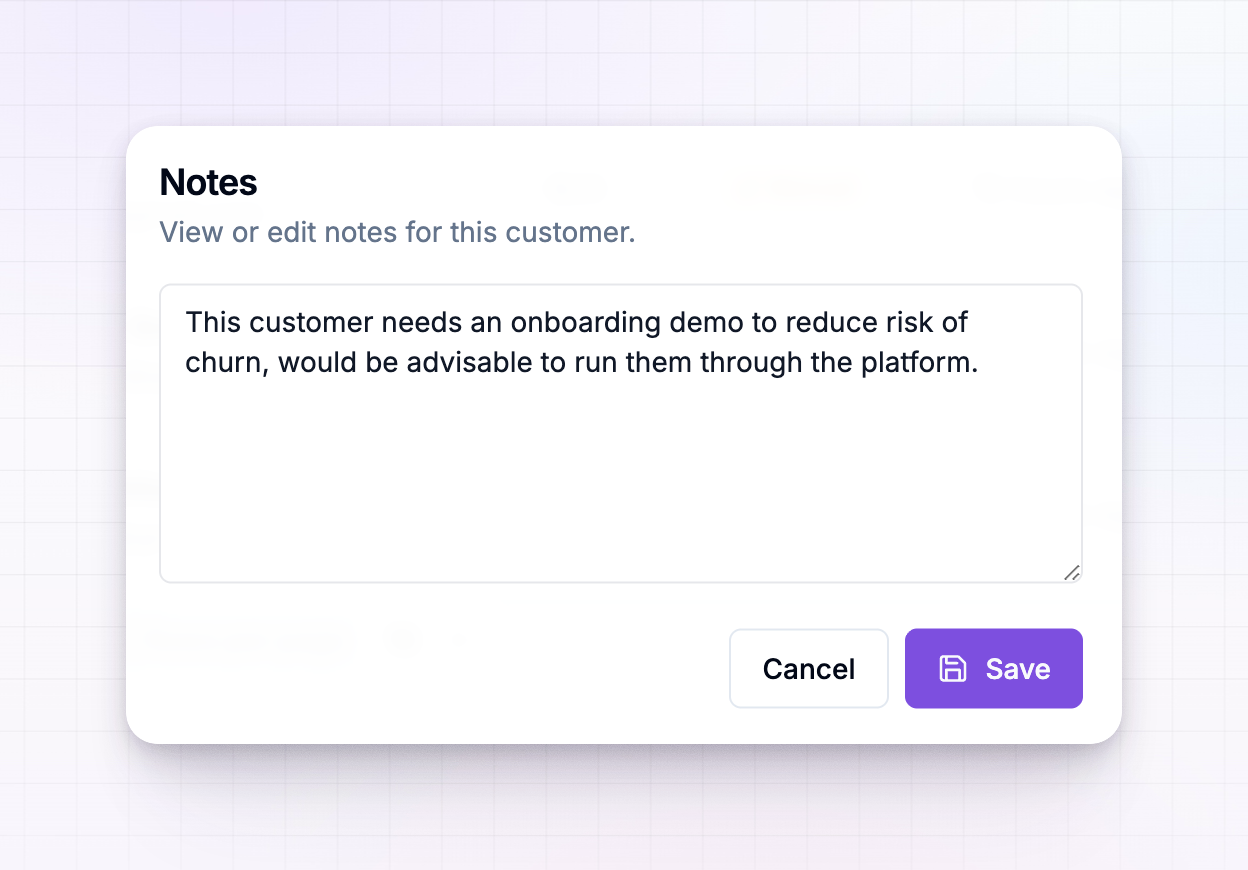 To change a note later, open it the same way, edit the text, and save again. To clear a note, delete everything in the box and save.
See who has a note at a glance
The Notes column shows a small document icon on every row, and its look tells you whether a note is there:- A filled blue icon means the customer has a note.
- A gray outline icon means there’s no note yet.
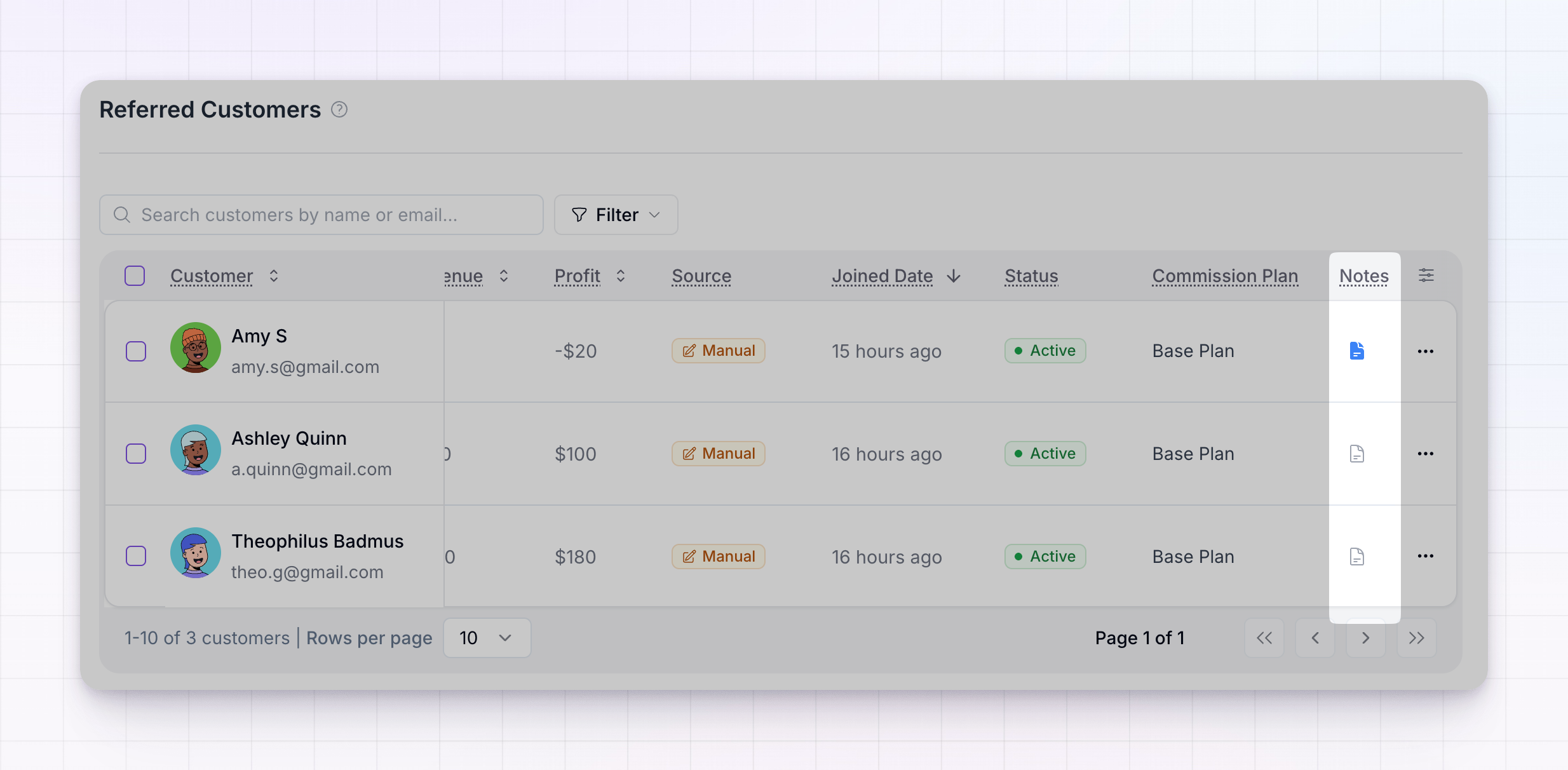 Hover the icon to preview the note without opening it, with an Edit Notes option right there if you want to change it. If the column isn’t showing, turn it on from the columns control in the toolbar.
Related
Customers overview
A tour of the Customers screen and everything it shows.
Customer statuses
Leave a note when you accept or reject a submission.
Add a sale
Record a purchase against a customer.
Import customers
Bring referrals in from a CSV or another platform.